





WinHex: Additional Features of Specialist Licenses
Refine Volume Snapshot
1) Particularly thorough file system search
• FAT12/FAT16/FAT32: This option searches for orphaned subdirectories
(subdirectories that are no longer referenced by any other directory).
• NTFS: This option searches for FILE records in sectors that do not belong
to the current MFT. Such FILE records can be found e.g. after a partition
has been recreated, reformatted, moved, resized, or defragmented. With a
forensic license, in a second and third step, this option also searches INDX
buffers and $LogFile for noteworthy index record remnants, which either
reveal previous names or paths of renamed/moved files/directories that were
known to the volume snapshot before or deleted files that the volume
snapshot was not aware of before (without file contents, though).
• UDF: While the first and the last session of multi-session UDF CDs/DVDs
will be listed automatically, additional sessions in the middle can be found
only with this option.
• CDFS: Usually all sessions on a multi-session CD/DVDs are detected
automatically. In cases where they are not (e.g. when CDFS co-exists with
UDF or if the gaps between the sessions are unusually large), this will
detect sessions beyond the first one.
Taking a thorough volume snapshot is possibly a lengthy operation, depending
on the size of the volume, and for that reason this is not the standard
procedure when opening volumes.
2) The "File header signature search" option helps to include files in the
volume snapshot that can still be found in free or used drive space based on
their file header signature and are no longer referenced by file system data
structures. You are asked to select certain file types for detection,
specify a default file size, an optional filename prefix etc. Please see
"File Recovery by Type" and the file type definitions for details. Files
found with this method will be included in the volume snapshot only if there
is no other file in the volume snapshot with the same start sector number
yet, to avoid duplicates. Files found with this method are listed with a
generic filename and size as detected by the "File Recovery by Type"
mechanism. If applied to a physical, partitioned evidence object, only
unpartitioned space and partition gaps will be searched for signatures, and
always at sector boundaries, because the partitions are treated as separate,
additional evidence objects.
3) Hash values can be computed for files in the volume snapshot. In addition
to this, a forensic license allows to match the hash values against
individually selected (or simply all) hash sets in the internal hash
database. The filter can then later be used to hide known irrelevant files.
Files recognized as irrelevant with the help of the hash database are also
excluded from further processing as part of volume snapshot refinement if
the corresponding option is enabled, which among other benefits saves time.
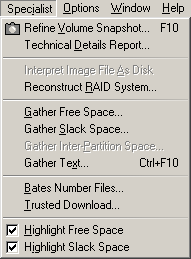
Technical Details Report: Shows information about the currently
active disk or file and lets you copy it e.g. into a report you are writing.
Most extensive on physical hard disks, where details for each partition and
even unallocated gaps between existing partitions are pointed out. WinHex also reports the password protection status of
ATA disks.
Forensic license only: WinHex is able to detect hidden host-protected areas
(HPAs, a.k.a. ATA-protected areas) and device configuration overlays (DCO
areas) on ATA hard disks. A message box with a
warning will be displayed in case the disk size has been artificially
reduced. At any rate, the real total number of sectors according to ATA, if
it can be determined, is listed in the details report. Some important SMART
status information is also displayed, for hard disks connected via [S]ATA
that support SMART. Useful to check for one's own hard disk as well as that
of suspects. For example, you can learn how often and how long the hard disk
was used and whether it has had any bad sectors (in the sense that
unreliable sectors were replaced internally with spare sectors). If a hard
disk is returned to a suspect and he or she consequently complains about bad
sectors and accuses you of having damaged the disk, a details report created
when the hard disk was initially captured can now show whether it was
already in a bad shape at that time. Also, seeing that spare sectors are in
use means knowing that there is additional data to gain from the hard disk
(with the appropriate technical means).
Interpret Image File As Disk: Treats a currently open and active disk
image file as either a logical drive or physical disk. This is useful if you
wish to closely examine the file system structure of a disk image, extract
files, etc. without copying it back to a disk. If interpreted as a physical
disk, WinHex can access and open the partitions contained in the image
individually as known from "real" physical hard disks.
WinHex is even able to interpret spanned raw image files, that is, image
files that consist of separate segments of any size. For WinHex to detect a
spanned image file, the first segment may have an arbitrary name and a
non-numeric extension or the extension ".001". The second segment must have
the same base name, but the extension ".002", the third segment ".003", and
so forth. Both the Create Disk Image command and the DOS cloning tool X-Ways
Replica are able to image disks and produce canonically named file segments.
Image segmentation is useful because the maximum file size supported FAT
file systems is limited.
In some rare cases WinHex may be unable to correctly determine whether the
first sector in an image is the sector that contains a master boot record or
already a boot sector, and consequently interprets the image structure in a
wrong way. If so, hold the Shift key when invoking this command. That way
WinHex will ask you and not decide on its own. That will also make WinHex
prompt you for the original sector size. When the segments of a raw image
are spread across two different drives, you may hold the Control key to be
able to specify the other storage location. Should there be any problems
with detecting the file system in a volume, you may hold both Ctrl and Shift
while opening it to indicate the file system type you suppose in the volume
yourself.
Mode 1 ISO CD images are also supported, if they are not spanned, and (with
a forensic license) also main memory dumps. With a forensic license, WinHex
can also interpret .e01 evidence files, which can be created with the Create
Disk Image command.
Reconstruct RAID System: see user manual
Gather Free Space: Traverses the currently open logical drive and
gathers all unused clusters in a destination file you specify. Useful to
examine data fragments from previously existing files that have not been
deleted securely. Does not alter the source drive in any way. The
destination file must reside on another drive.
Gather Slack Space: Collects slack space (the unused bytes in the
respective last clusters of all cluster chains, beyond the actual end of a
file) in a destination file. Otherwise similar to Gather Free Space. WinHex
cannot access slack space of files that are compressed or encrypted at the
file system level.
Gather Inter-Partition Space: Captures all space on a physical hard
disk that does not belong to any partition in a destination file, for quick
inspection to find out if something is hidden there or left from a prior
partitioning.
Gather Text: Recognizes text according to the parameters you specify
and captures all occurrences from a file, a disk, or a memory range in a
file. This kind of filter is useful to considerably reduce the amount of
data to handle e.g. if a computer forensics specialist is looking for leads
in the form of text, such as e-mail messages, documents, etc. The target
file can easily be split at a user-defined size. This function can also be
applied to a file with collected slack space or free space, or to damaged
files in a proprietary format than can no longer be opened by their native
applications, like MS Word, to recover at least unformatted text.
Bates-Number Files: Bates-numbers all the files within a given folder
and its subfolders for discovery or evidentiary use. A constant prefix (up
to 13 characters long) and a unique serial number are inserted between the
filename and the extension in a way attorneys traditionally label paper
documents for later accurate identification and reference.
Trusted Download: Solves a security problem. When transferring
unclassified material from a classified hard disk drive to unclassified
media, you need to be certain that it will have no extraneous information in
any cluster or sector "overhang" spuriously copied along with the actual
file, since this slack space may still contain classified material from a
time when it was allocated to a different file. This command copies file in
their current size, and no byte more. It does not copy entire sectors or
clusters, as conventional copy commands do. Multiple files in the same
folder can be copied at the same time.
Highlight Free Space/Slack Space: Displays offsets and data in softer
colors (light blue and gray, respectively). Helps to easily identify these
special drive areas. Works on FAT, NTFS, and Ext2/Ext3 partitions.

